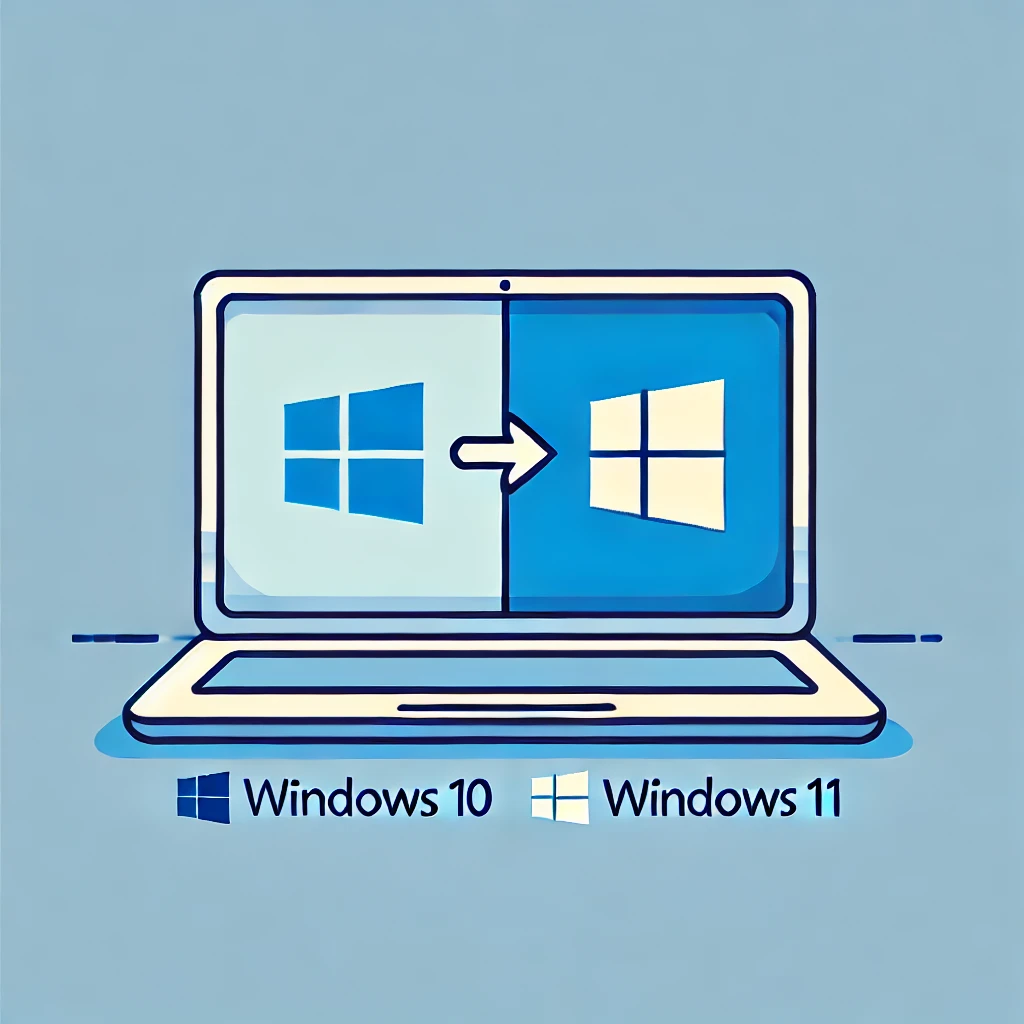
Windows 11 apporte de nombreuses nouvelles fonctionnalités et améliorations qui optimisent l’expérience utilisateur. Mais avant de franchir le pas vers le nouveau système d’exploitation, la question se pose : Is my PC ready for Windows 11? Discover how to know if your device meets the minimum requirements and how to best prepare for the upgrade.
Why should you switch to Windows 11?
Avant d’examiner les exigences techniques, il est important de savoir pourquoi le passage à Windows 11 peut être judicieux. Windows 11 offre de nombreux avantages tels qu’une Modernized user interface, de best performances, of Enhanced security features and some optimized game features. Mais tous les PC ne sont pas capables de prendre en charge ces nouvelles fonctionnalités sans problème. C’est là que la Required configuration Get in the game.
Minimum system requirements for Windows 11
Microsoft has set out minimum requirements claires qu’un PC doit respecter pour installer Windows 11. Voici les points les plus importants :
- Processor: 1 GHz or more, with at least two cores and appearing in the List of supported processors (e.g., 8th generation Intel Core or newer, AMD Ryzen 2000 series or newer).
- RAM at least 4 Go.
- Storage: 64 GB ou plus d’espace libre sur le disque dur.
- System firmware: UEFI (Unified Extensible Firmware Interface) with support for safe start.
- TPM (Trusted Platform Module) : Version 2.0.
- Graphics card DirectX 12 compatible graphics card or WDDM 2.0 compatible driver version.
-
Display: écran avec une résolution d’au moins 720p, d’une diagonale supérieure à 9 pouces et de 8 bits par canal de couleur.
How to check if your PC meets the requirements
The PC Health Check est un outil officiel de Microsoft qui permet de savoir facilement si votre PC est prêt pour Windows 11. Vous pouvez télécharger et exécuter l’outil à partir du site Web de Microsoft (https://aka.ms/GetPCHealthCheckAppIt automatically checks if your device meets the above requirements.
You can also open the Control Panel and right-click on «This PC» to display the Properties. Vous trouverez ici quelques informations de base sur votre processeur, votre RAM et votre stockage. Cependant, pour d’autres exigences telles que TPM 2.0 et UEFI, vous devrez peut-être accéder au BIOS/UEFI de votre PC et vérifier.
Special Requirements: TPM 2.0 and Secure Boot
A crucial point in Windows 11 requirements is the technology TPM 2.0 and support for Secure Boot. Many older PCs may not support these features. TPM 2.0 is a security platform that ensures your PC is protected against unauthorized access.
- How to check if TPM 2.0 is enabled on your PC?
- Press the Windows key + R, type « tpm.msc » and press Enter.
- You can see your TPM version in the TPM Management tool. If the message says « Version 2.0 », votre PC est prêt. S’il s’agit d’une ancienne version ou si aucun TPM n’est affiché, il se peut que votre PC ne prenne pas en charge Windows 11 sans une mise à niveau du micrologiciel.
What should I do if my PC doesn't meet the requirements?
Si votre PC ne répond pas aux exigences de Windows 11, plusieurs options s’offrent à vous :
-
Switching to a new PC: si votre appareil est très ancien, il est peut-être temps d’acheter un nouvel appareil pris en charge par Windows 11. La mise à niveau vers un PC moderne apporte également de nombreux avantages en termes de performances et de compatibilité logicielle future.
-
Stay with Windows 10: Windows 10 sera disponible jusqu’au October 14, 2025 with security updates. If your PC doesn't support Windows 11, you can continue to use Windows 10 and it will remain safe and stable for a while. A paid extended support option will also be available.
-
Hardware Upgrade: si votre PC ne répond qu’à certaines exigences (comme TPM 2.0 ou Secure Boot), vous pouvez envisager de mettre à niveau le matériel si possible (par exemple en ajoutant un module TPM). Veuillez toutefois noter que tous les PC ne sont pas adaptés à de telles mises à niveau.
How to prepare my PC for Windows 11?
If your PC is ready for Windows 11, you can follow a few steps to ensure a smooth upgrade:
- Backup: Before upgrading, back up your important files to prevent data loss.
- Update all drivers: Ensure all drivers are up to date, especially the graphics and network drivers.
- Run Windows Update: install all available updates for Windows 10 to ensure your system is optimally prepared.
Conclusion: Is my PC ready for Windows 11?
Il est facile de savoir si votre PC est prêt pour Windows 11. Utilisez l’outil PC Health Check of Microsofthttps://aka.ms/GetPCHealthCheckApp) to check if your device meets the requirements. If your PC does not meet the requirements, you can either stay on Windows 10, buy a new PC, or try to upgrade your hardware if possible. Upgrading to Windows 11 can bring new features, improved security, and better performance to your PC. If your device meets the requirements, there's nothing stopping you from upgrading!