
Frequently asked questions
Our products
You obtain an unlimited and valid license, so it is a one-time cost. You do not subscribe to a subscription and you do not have to pay any annual fees, but you can use the software as long as the license code is in your possession.
Yes. If you are interested in other Microsoft products that are not listed in the store, you can also contact us. Almost all Microsoft products are available.
Visio is an innovative solution for the simple visualization of data-driven business process flows, supported by the many powerful features of Microsoft 365. In Microsoft Teams, you can easily and collaboratively design, access, and modify Visio diagrams.
Yes. If you are interested in other Microsoft products that are not listed in the store, you can also contact us. Almost all Microsoft products are available.
Yes, Office 2021 is compatible with previous versions and can open, edit, and save documents created with previous versions of Office. However, the new features of Office 2021 may not be available in previous versions.
Yes, Office 2024 is compatible with previous versions and can open, edit, and save documents created with previous versions of Office. However, the new features of Office 2024 may not be available in previous versions.
Compared to previous versions, Windows 11 offers a very clear interface. Moreover, this operating system offers many features that significantly improve the workflow. Additionally, increased security is provided thanks to modern features. Windows 11 is designed to work with less stress. Therefore, the update may be worth it for any user who currently has Windows 10 or one of the many previous versions.
CAL stands for “Client Access License”. It is a license that grants users or devices the right to access the services or functions of a server. CALs are particularly relevant in the context of Microsoft server products such as Windows Server, SQL Server, Exchange Server and many others.
There are two main types of CAL:
1. CAL User (User CALs): This type of license allows a specific user to access the server from any device (for example, from a work computer, a home PC, a smartphone, etc.).
2. CAL Appareil (Device CALs): This type of license allows a specific device to be used by any user to access the server. This option can be more economical if several users use the same workstation or device to access the server.
The choice between CAL User and CAL Device depends on the specific usage situation within a company or organization. Microsoft offers these flexible licensing options to suit different business models and ways of working.
CALs are necessary because Microsoft’s server operating systems and some other server products are licensed on the basis of the access license principle. This means that in addition to the license for the server itself, additional licenses are required to legalize access to that server.
While MS Planner is more suited to small and medium-sized projects, MS Project really shines in large projects, a complete ERP resource planning or the linking of several independent projects.
Since we source large quantities from large companies and various European purchasing channels, we can maintain extremely low prices in most cases. Moreover, we deliver all our products digitally, which also eliminates the shipping costs normally associated with it.
Yes, the traditional Office 2021 pack includes the local versions of Word, Excel, PowerPoint, and Outlook. Starting with the Professional edition, Access and Publisher are also included.
Yes, the traditional Office 2024 pack includes the local versions of Word, Excel, PowerPoint, and Outlook. Starting with the Professional edition, Access and Publisher are also included.
The difference between Professional Plus and Microsoft Office Standard lies in the included applications. While Office Standard offers the same basic package as Office Professional, Access and Publisher are missing from Office Standard.
We only provide legitimate activation keys, so all our activation codes comply with European legislation and come from the EU. You will also receive an invoice including VAT and a certificate of origin.
Only the email sending of the product key for software activation and installation instructions is performed. No data support or COA (Certificate of Authenticity) is sent.
The products offered have been checked as part of the commercial control obligation.
Microsoft Office 2021 Professional Plus is available as a complete Microsoft productivity package. This pack contains a wide variety of applications. These include Word, Excel, PowerPoint, OneNote, Outlook, Teams, Publisher, and Access, everything you need to succeed in a professional environment.
Office 2021 Professional Plus includes Word, Excel, PowerPoint, Outlook, OneNote, Publisher, Access, and Teams.
Office 2024 Professional Plus includes Word, Excel, PowerPoint, Outlook, OneNote, Publisher, Access, and Teams.
Windows 10 offers total flexibility to install applications from any source, while Windows 10 S only allows applications from the Microsoft Store to increase security and performance.
Known error messages
New Windows feature: With Windows 10/11, update all programs installed via console (Winget)
winget is a package manager for Windows that allows users to install, update, and manage software from the command line. It was developed by Microsoft and is part of the Windows Package Manager. With winget, users can view a list of available packages, install specific software packages, update already installed software, and perform many other actions, all via simple command line commands. It is similar in functionality to other package managers like APT for Debian-based systems or YUM for Red Hat-based systems, but it is optimized specifically for Windows.
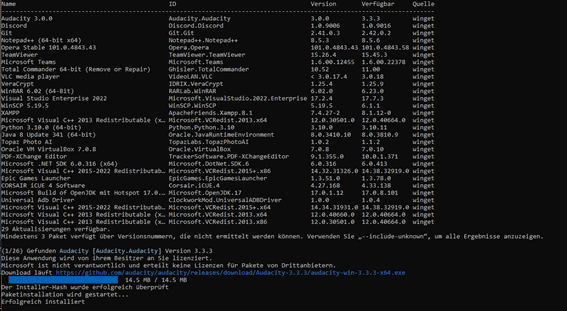
To update all the programs installed on your Windows 10 or Windows 11, simply enter the following command:
Winget upgrade –all
To update all the programs installed on your Windows 10 or Windows 11, simply enter More info and more commands: https://learn.microsoft.com/de-de/windows/package-manager/winget/
If you purchased a Windows product that requires phone activation, we will provide you with instructions on exactly how to proceed.
1. Press the [Windows] + [R] key combination (alternatively, click on the startup symbol, enter CMD and press the Enter key) and enter the command “slui 4” in the Run dialog box.
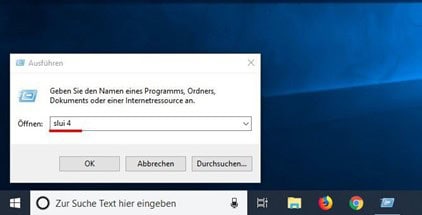
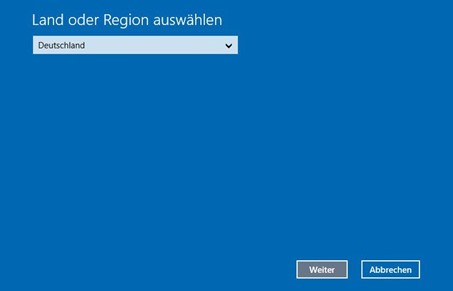
2. A new window will open. Select the entry “Germany” in the drop-down menu and click “Next”.
2. A new window will open. Select the country that suits you from the drop-down menu and click “Next”.
3. An installation ID with nine digits will appear. Above, you will find a phone number to call.
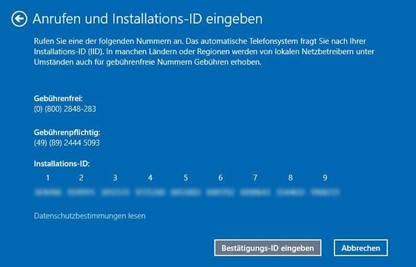
4. If you wish to perform the phone activation yourself: a computer voice will ask you to enter the numerical blocks via your phone’s keyboard. You will then receive a confirmation ID with the blocks from A to H. Note this number down on paper.
5. Click on the “Enter confirmation ID” button and enter the ID you have just received.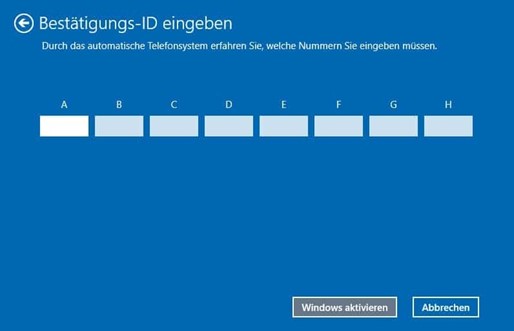
6. Complete the activation process via the “Activate Windows” button.
7. Finished. We wish you much pleasure with your product.
To activate your Windows 10 or Windows 11 using the command line, open the command line as an administrator. Click Start and enter CMD, then right-click on “Run as administrator”.
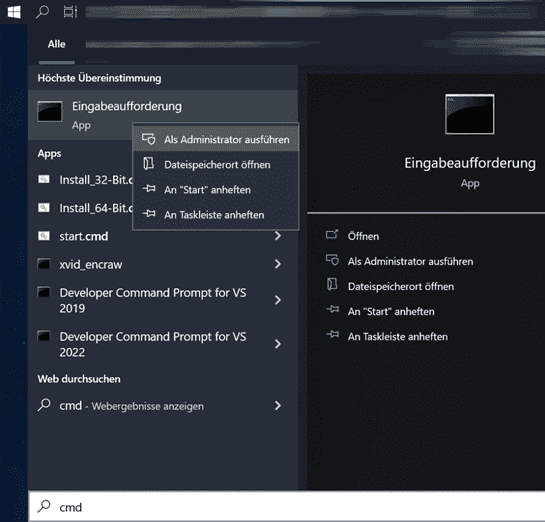
Enter the following in the command line and replace XXXXX with your product code: slmgr /ipk XXXXX and activate with: slmgr /ato
Error code: 0x803fa067
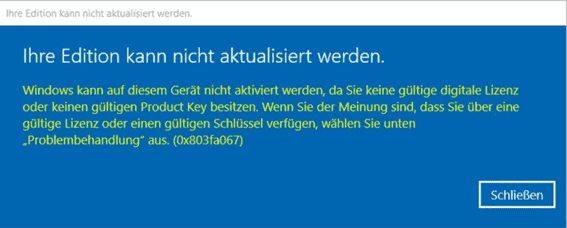
This error occurs frequently when you try to upgrade from Windows 10 Home to Professional or if your Home version has already been activated/linked to a digital license.
Option 1: Update via the console
Run the command line with administrator rights: Click the Start symbol or the Windows symbol (alternatively, you can press the Windows key on your keyboard) in the taskbar, enter CMD, right-click on “Invite Commands” and select “Run as Administrator”. The command line/console should now open with elevated administrator rights.
Enter the following command to check which editions you can update to:
DISM /Online /Get-TargetEditions
with
DISM /Online /Get-CurrentEdition
You can check which version you currently have installed.
To update to a higher version, for example from Home to Pro, enter the following:
changepk.exe /productkey VK7JG-NPHTM-C97JM-9MPGT-3V66T
The update process will now begin; wait until the process is complete. With this key, you cannot activate Windows 10 Pro; only upgrade from Home to Pro. After a successful update, you can now activate your Professional version with the product key you acquired from us.
Other generic keys for other editions of Windows to which you can upgrade (Windows automatically recognizes which edition is hidden behind the product code):
Windows 10/11 Home: YTMG3-N6DKC-DKB77-7M9GH-8HVX7
Windows 10/11 Home N: 4CPRK-NM3K3-X6XXQ-RXX86-WXCHW
Windows 10/11 Pro: VK7JG-NPHTM-C97JM-9MPGT-3V66T
Windows 10/11 Pro N: 2B87N-8KFHP-DKV6R-Y2C8J-PKCKT
Windows 10/11 Pro for DXG7C-N36C4-C4HTG-X4T3X-2YV77 workstations
Windows 10/11 Pro N for workstations WYPNQ-8C467-V2W6J-TX4WX-WT2RQ
Windows 10/11 S (only up to Windows 10 1803) 3NF4D-GF9GY-63VKH-QRC3V-7QW8P
Other:
Windows Team (PPIPro) = XKCNC-J26Q9-KFHD2-FKTHY-KD72Y
Windows Cloud (cloudedition) = KY7PN-VR6RX-83W6Y-6DDYQ-T6R4W
Windows Cloud N (cloudeditionn) = K9VKN-3BGWV-Y624W-MCRMQ-BHDCD
IoT Enterprise: = MNMRC-69F8V-2FCXX-GFQVY-BXQ3X
IoT Enterprise S : = JH8W6-VMNWP-6QBDM-PBP4B-J9FX9
CloudE = KD69N-VWMRK-Y9KBG-FCBM3-KF7QX
Andromède = C9PDN-TR2KB-MR4DF-3RQ7Y-88HFF
Professional Education = 8PTT6-RNW4C-6V7J2-C2D3X-MHBPB
ProfessionalEducationN = GJTYN-HDMQY-FRR76-HVGC7-QPF8P
ProfessionalStudent = V3NH2-P462J-VT4G4-XD8DD-B973P
Education = YNMGQ-8RYV3-4PGQ3-C8XTP-7CFBY
EducationN = 84NGF-MHBT6-FXBX8-QWJK7-DRR8H
Enterprise = XGVPP-NMH47-7TTHJ-W3FW7-8HV2C
EnterpriseS = NK96Y-D9CD8-W44CQ-R8YTK-DYJWX
EnterpriseSEval = JBGN9-T2MH3-2YV7W-WBWHM-FGFCG
EnterpriseN = WGGHN-J84D6-QYCPR-T7PJ7-X766F
EnterpriseSNEval = 7M88N-MTVMR-VC46G-4K4R6-KTQF7
Clés Insider Server vNext (LTSC)
Standard Server: MFY9F-XBN2F-TYFMP-CCV49-RMYVH
Data center: 2KNJJ-33Y9H-2GXGX-KMQWH-G6H67
Clés Insider Server
Standard Server: V6N4W-86M3X-J77X3-JF6XW-D9PRV
Server Datacenter: B69WH-PRNHK-BXVK3-P9XF7-XD84W
Option 2: Update via a generic key
Attention: The update apparently cannot be done without problems with all OEM keys. If Windows complains that a product key is not suitable, the following helps: Microsoft has released a generic product key with which you can upgrade a Home edition to a Pro edition as described.
VK7JG-NPHTM-C97JM-9MPGT-3V66T
If Windows displays an error here, for example the error code 0x803fa067, repeat the process and temporarily disconnect the Internet connection, for example by unplugging the LAN cable, turning off the LAN adapter, or turning off Wi-Fi and enter the code again.
With this key, you can't activate Windows Pro; you can only upgrade from Home to Pro. After a successful update, you can now activate your Professional version with the product key you purchased from us.
Option 3: Activation offline
Disconnect your Internet connection. Remove the network cable or disable Wi-Fi.
Press the WIN+R keys and enter “SLUI” in the text field; the activation wizard should open. Enter here the update key and/or the Windows 10 Pro product key that you received from us.
Done. Windows 10/11 Pro should now be active.
Please install the correct version of Office. Through our download page, you can access the correct software for your purchased product key.
Also note that older or newer versions must be removed before installation to avoid errors, for example, during activation.
To create a bootable USB drive, you need a USB drive with at least 8 GB of capacity, an ISO image or DVD, and a special tool (Rufus).
Important: All data on the USB key will be completely erased during the process.
Follow these steps:
1. First, download the ISO image or DVD to your computer.
2. Also download the tool (Rufus) to your computer.
3. Connect the USB key.
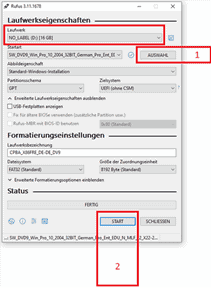
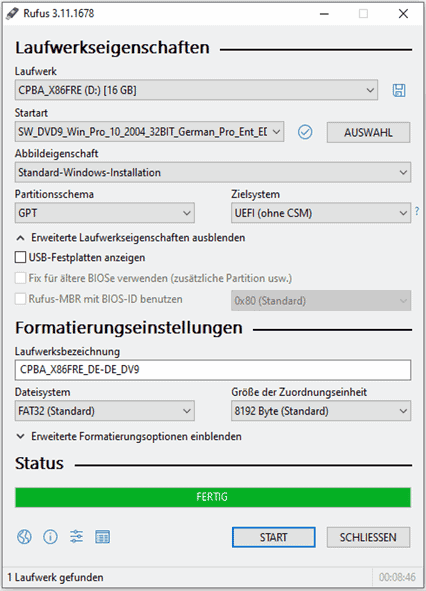
4. Launch the tool (Rufus) by double-clicking on the “rufus.exe” file – the tool will recognize your USB key.
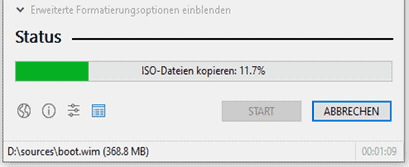
5. Click “SELECT” and choose the ISO file (#1 in screenshot 1).
6. Click “START” to start the process (#2 in screenshot 1).
7. Confirm the warning message regarding the destruction of the USB key.
8. Wait for the process to complete – this is indicated by the message “FINISHED”.
9. Close the tool by clicking on “CLOSE”.
If you encounter the error that the Microsoft Office activation window still appears when Microsoft Office starts, you must try the following troubleshooting solution to change, remove, or activate an existing product code that is locked or invalid.
If the Microsoft Office activation no longer works via the normal activation mask, you need to check if there is a second key registered in the background.
Step 1: Launch the console (CMD) as an administrator
To do this, open CMD as an administrator. In previous versions of Windows, the Windows Start menu button is called “Start,” and enter CMD with the right mouse button; you can select “as administrator” and click.
Step 2: Change the program directory
cd “C:Program FilesMicrosoft OfficeOffice16”
Information:
The name of the “Office16” folder may vary depending on the version of the program.
If you have installed Office in 32-bit version, use the following path:
cd “C:Program Files (x86)Microsoft OfficeOffice16”
Information:
If cscript.exe is not found in either the “Program Files” folder or the “Program Files (x86)” folder, try opening it from “C:Windowssystem32”. However, the path to OSPP.VBS must be adjusted.
Example:
cscript C:Program FilesMicrosoft OfficeOffice16OSPP.VBS /dstatus
Step 3: Display the installed keys
With the following command, you can view the current status of the installed keys:
cscript OSPP.VBS /dstatus
In the command output, you can obtain, among other things, the following information:
How many keys are installed
For which version of Office is the key intended?
Status of the license
The last five digits of the key installed (used for selection)
If in this window you notice that there are two active keys, you must delete the inactive key.
Step 4: Remove the keys
To delete an inactive key, use the following command:
Replace “XXXXX” with the last five digits of the key to use. (Shown in the “dstatus” command under “Last 5 characters of installed product key”).
cscript OSPP.VBS /unpkey:XXXXX
Step 5: Save a new key
To register a new key, use the following command:
Replace “XXX…” with the new key here.
cscript OSPP.VBS /inpkey:XXXXX-XXXXX-XXXXX-XXXXX-XXXXX
Step 6: Activate the new product key
To perform the activation, use the following command.
cscript OSPP.VBS /act
This procedure currently works in all current versions of Office up to version 2021. (Office 2003, 2007, 2010, 2013, 2016, 2019, 2021)
With these simple steps, you can solve the problem:
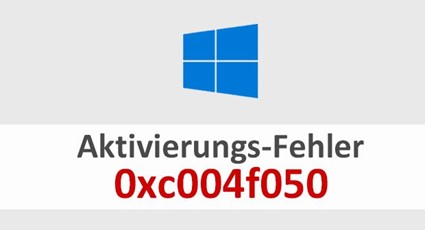
If you receive the error: 0xC004f050:
Error during installation. Follow the instructions in the following video:
1. Enter the generic key: VK7JG-NPHTM-C97JM-9MPGT-3V66T
2. Turn off the Internet and start the update. To do this, restart the PC.
3. After a successful installation, proceed to our key sent by email and restart the PC.
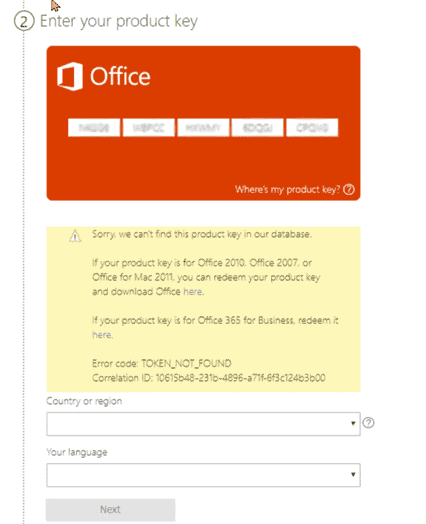
You must install the correct software and use the activation wizard for your Office product.
setup.office.com is intended for activation of the Home and Student versions, and is not compatible with the product key you have purchased.
Payment / Delivery
After a successful order, you will usually receive the key and the download link by email immediately.
You can download the software directly from our download center.
You will receive an invoice with the VAT indicated by email immediately after receiving the payment.
Since we only sell keys for downloadable products, you will not receive any data support.
We guarantee a successful activation.
If you have any problems, please contact our support team, who usually responds within a few minutes, but definitely the same day.
The license key/key is located in the email we sent you. If you haven’t received the email, check your spam folder. If nothing has happened there, send us an email and we will send you the key again.
With these payment methods, it may take some time before the payment is credited through the payment provider and the store receives a confirmation; this process can take up to 24 hours, but this is not typical. We ship your merchandise as soon as we receive the payment confirmation from the provider.
Our products are shipped digitally immediately after receipt of payment. As soon as we confirm receipt of payment, you will receive an email with all the necessary information for downloading, installing, and activating.
In electronic software distribution (ESD), the customer purchases the software online, receives a download link and a product key by email, downloads the software, installs it on their device, and finally activates it with the product key.
ESD stands for “Electronic Software Delivery”, which refers to the process in which software products are delivered digitally via the Internet, rather than physically on media such as DVDs or USB drives. Customers receive a download link and, if applicable, a product key via email after purchase, with which they can download and activate the software directly. This allows for quick availability and installation of the software without any waiting time for shipping.
We assure you that all our products are authentic, because we are a legal distribution partner of Microsoft software. All our products come with a lifetime complete product warranty.
Please first check your spam or junk mail folder. If you don’t find anything there, please contact us. We will take care of it immediately.
Unfortunately, there are sometimes typos in the email address or the email delivery did not work.
The activation codes are sent by email immediately after payment. Occasionally, this can take a little longer than expected. There can be several reasons for this, but please do not panic. It is on its way! If something goes wrong, simply contact us.
TIP: Also check your spam folder!
Installation
If the online activation fails, try the following:
1. Check the internet connection.
2. Temporarily disable the firewall and the antivirus.
3. Run as an administrator.
4. Adjust the system time correctly.
5. Use the Microsoft Support and Recovery Assistant.
6. Try activating the phone.
7. Contact Microsoft support.
Yes, Microsoft Visio and Project are compatible with the Office suites, but they are not included in them and must be purchased separately. They complement the Office applications such as Word, Excel, and PowerPoint and can be installed alongside them on the same computer. Make sure the compatibility is in terms of version (year and 32-bit or 64-bit).
Example 1: Visio 2013 Prof Plus with Office 2016 Prof Plus -> not compatible, so the two programs cannot be used simultaneously on a system.
Example 2: Visio 2013 Prof Plus with Office 2013 Prof Plus -> compatible; both programs can be installed and used on a system without any problems.
No, that is not the case. The license is valid for both variants. The choice depends on your operating system. It is best to check which version suits you best before installation.
If you have problems with our download link, please do not hesitate to contact our customer service by email. Our customer service and support are available 7 days a week, 24 hours a day, and we will send you an alternative download link immediately.
Check the system requirements listed on our download page. The first step to test and verify the compatibility of the software is to check the system requirements of the software you want to install or update. System requirements are the minimum hardware and software specifications your device needs to run the software properly.
The period after downloading is limited in most options to 30 or 60 days. Do you wish to use the Office applications for longer than the trial period? To do this, you must activate Office with a license key.
Most of the time, it’s only minor details that cause problems. Feel free to contact us; our technical support team will be happy to help you until the purchased product is fully functional.
If necessary, the product will be installed/configured via remote maintenance.
Switching from S mode is free. Open Settings > Update & Security > Activation on the PC where Windows 10 is running in S mode. Select the option Go to the store in the section Switch to Windows 10 Home or Switch to Windows 10 Pro.
Try it first with an alternative browser. If that doesn’t work, disable your antivirus or firewall protection during the download period. All installers/images come directly from Microsoft and are free of viruses, malware, etc., we guarantee it!
Before updating to Windows 11, you must take the following steps into account:
1. Check compatibility: Use the “PC Health Check” tool from Microsoft to ensure that your PC meets the system requirements.
2. Back up your data: Store important files on an external hard drive or in the cloud.
3. Install the updates: Update your current operating system and all drivers to the latest version.
4. Check the compatibility of the software: Make sure your applications are compatible with Windows 11.
5. Free up disk space: Make sure you have enough disk space for the update.
6. Create a system restore point: In case of a problem, it is useful to create a restore point.
These steps will help you to perform the update without any problems.
No, Windows 11 cannot be installed on any computer, because it has specific system requirements. Some of the most important requirements are:
– A 64-bit compatible processor with at least 1 GHz and 2 cores or more.
– At least 4 GB of RAM.
– At least 64 GB of available storage space.
– A graphics device compatible with DirectX 12 with WDDM 2.x.
– A screen with a minimum resolution of 720p, larger than 9 inches diagonally, with 8 bits per color channel.
– UEFI firmware with Secure Boot capability.
– Secure platform module (TPM) version 2.0.
Computers that do not meet these requirements will not be able to run Windows 11. Microsoft offers a tool called “PC Health Check” with which you can check whether your current computer is compatible with Windows 11.
There should not be any other older Office applications installed on your system. If you have problems installing Office, try the following:
1. Run as administrator: Right-click on the installation file and select “Run as administrator”.
2. Disable the antivirus: Temporarily disable your antivirus program and try reinstalling it.
3. Check your internet connection: A stable connection is important.
4. Uninstall and reinstall Office: Delete the existing Office installations and reinstall the pack.
5. Update your system: Update your operating system.
6. Check the disk space: Make sure you have enough disk space for the installation.
7. Look for error messages: If specific errors occur, check the Office support page or contact Microsoft support.
To install a new operating system on a PC without an operating system, follow these steps:
1. Choose an operating system (for example, Windows or Linux).
2. Download the operating system as an ISO file and save it on a USB key to create a bootable USB key. For Windows, use the 'Windows Media Creation Tool”.
3. Restart your PC and press a key (often F2, F10 or DEL) to enter the BIOS or UEFI. Change the settings so that the PC starts from your USB key.
4. Follow the installation instructions on the screen. Choose where to install the operating system and enter the necessary information.
5. Finish the installation and restart the PC. Remove the USB key so that the PC starts up with the new operating system.
The new operating system is now installed and ready to be configured.
Activation confirms the authenticity of your copy of the software and guarantees that it is used in accordance with the terms of the license. It is usually performed by entering a product key or license key and allows full access to all functions and updates of the software.
A license for 1 PC allows the use of the software on a single computer, while a license for 2 PCs allows the use on two devices. The main difference lies in the number of computers on which the software can be installed and activated.
1 PC = 1 operating system / device
2 PCs = 2 operating systems / devices
Our service
Support for the retail versions of Office 2021 ends on October 9, 2029; unlike previous versions of Office, there is no extended support period.
Support for the detailed versions of Office 2024 ends on October 9, 2029; unlike previous versions of Office, there is no extended support period.
Those planning to switch to a new operating system usually do not want to spend extra money to buy new software. Although Windows 11 is economical, there should be no additional costs. Generally, there are no software compatibility issues. Most older applications will also work without restrictions on the Windows 11 operating system. So far, no known software component should have any problems.
You can easily check this: open the Windows 10 settings and go to the “Update and Security” section > “Activation”. Here, Windows 10 displays the installed edition and the activation status.
Officially, Microsoft Edge cannot be uninstalled because it is deeply integrated with Windows. It is recommended to simply set another browser as the default browser if you do not want to use Edge. Any advanced attempts to remove it could affect the system.
This error message can have several causes and occurs both with used keys and overloaded activation servers.
You can always activate your operating system legally and without any problems using your license key. Simply contact our customer service by email or follow our activation guide.
Microsoft Teams is a messaging app for teams where all conversations, meetings, files, and notes are accessible to everyone in one place. It is a place where collaboration and work can be done in an open way. The interface of Microsoft Teams resembles the chat clients for social networks, such as Facebook or Google Hangouts.
We are committed to offering our customers the best possible service and support. Negative or rude messages do not solve problems. You can contact us by email if you have any dissatisfaction; we are understanding and flexible.
Your satisfaction is our priority!
We offer our products in English, Spanish, Italian, German and French. If the language you want is not available, download the corresponding language pack for the language you want to use from this page:
Language Pack for Office https://support.microsoft.com/en-us/office/language-accessory-pack-for-microsoft-365-82ee1236-0f9a-45ee-9c72-05b026ee809f.
The language pack includes the display and proofing tools for most languages, but you can still choose to have the display in one language and the editing or creation in another.
Office 2021 is compatible with Windows 10 and Windows 11. It is specifically designed to work with these newer versions of the Windows operating system, in order to offer users the best possible experience.
Office 2024 is compatible with Windows 10 and Windows 11. It is specifically designed to work with these newer versions of the Windows operating system, in order to offer users the best possible experience.
We currently only offer Office 2021 Home and Business, which runs on Mac. Generally, consumer customers can purchase Microsoft Office 2021 for Windows and Mac, and business customers can now purchase Microsoft Office LTSC for Windows and Mac. Office 2021 and Office LTSC 2021 are the next permanent versions of Office. They include improvements over Microsoft Office 2019 and previous versions of on-premises Office.
We currently only offer Office 2024 Home and Business, which runs on Mac. Generally, consumer customers can purchase Microsoft Office 2024 for Windows and Mac, and business customers can now purchase Microsoft Office LTSC for Windows and Mac. Office 2024 and Office LTSC 2021 are the next permanent versions of Office. They include improvements over Microsoft Office 2019 and previous versions of on-premises Office.
Until April 2023, the versions of macOS include:
1. OS X 10.0 Cheetah to OS X 10.11 El Capitan
2. macOS 10.12 Sierra to macOS 10.15 Catalina
3. macOS 11 Big Sur
4. macOS 12 Monterey
5. macOS 13 Ventura
Starting with macOS 10.12, the transition from OS X to macOS has been made. More recent versions may be available after April 2023.
Our customer service is available for you 24 hours a day, 7 days a week, and will be happy to help you quickly with any questions. Simply send us an email or use our chat to contact us.
In some cases, we also offer a free remote support session. In this case, we connect remotely to your PC so that we can solve the problem as if we were there. You can be sure that you can follow each of our steps. To do this, we use the free AnyDesk software.
If you wish to place a bulk order, please send us an email indicating the product you wish to purchase and the quantity. We will respond to you as soon as possible and confirm your order based on the availability of the product.
You receive a lifetime support for the products you purchase on our website. You can therefore send us an email to our customer service team and ask us your questions. We will ensure that the problems are resolved.